The TeamViewer Community will undergo scheduled maintenance on Wednesday, Nov. 18, from 2:00-5:00 AM CET.
The Community may be temporarily unavailable during this time. We apologize for the inconvenience. For more information, visit our Status page.
This post is archived. Information may be outdated or no longer valid.
Read this article in Japanese
This article applies to all TeamViewer customers with a Tensor license.
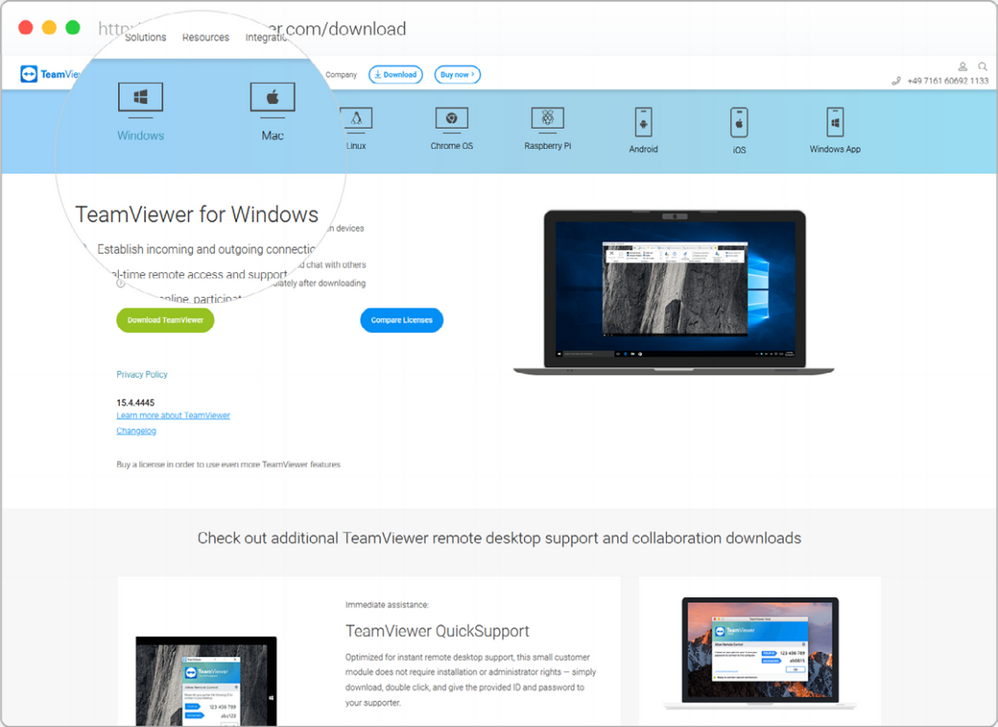
Download TeamViewer from our homepage at www.teamviewer.com/download:
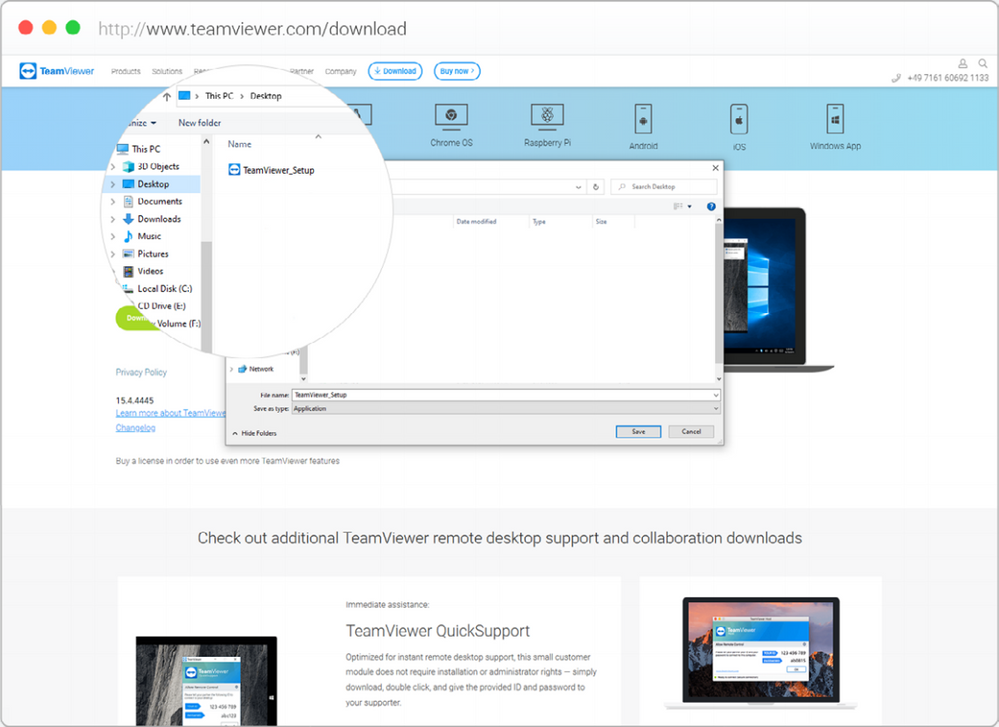
Click on the download button (e.g. Windows as in the example herein). You will be prompted to save the .exe file. Save it to your desktop.
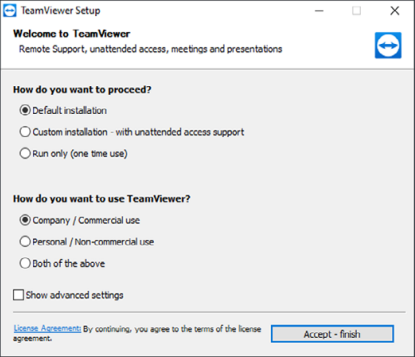
Run the .exe file freshly downloaded. A prompt will show up as below. Select default Installation and Company / Commercial use.
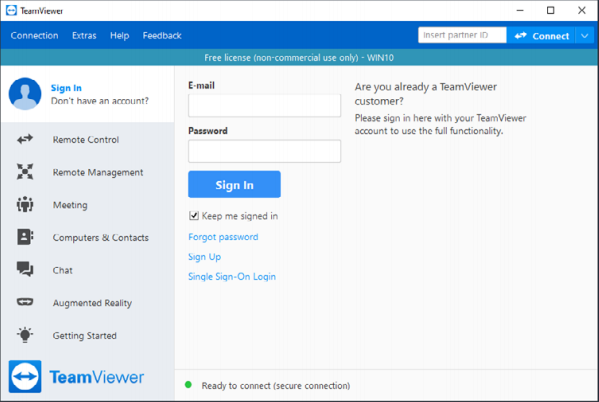
Once the installation finished, enter your e-mail address and password and click the Sign in button.
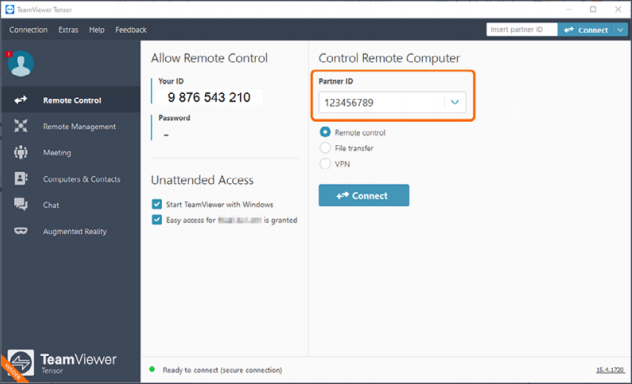
Enter the ID of your office desktop computer and click Connect.
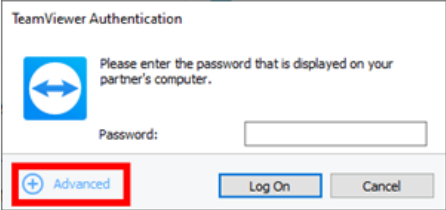
Use one of the two options to proceed with your login.
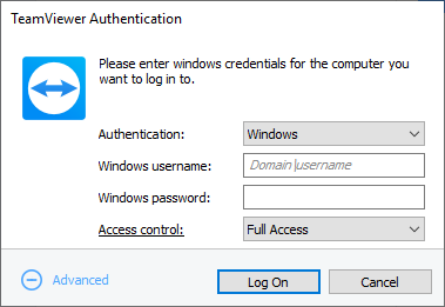
Log in using your Windows credentials.
Click the Advanced Button
Enter your Windows user name login and password.
You are now connected with your remote device.
Learn more about the latest feature we’ve released.
Discover quick, practical tips to get more out of TeamViewer each month.