This month’s release brings improvements across daily workflows, including updates in TeamViewer ONE, Tensor security settings, AI-powered troubleshooting with Tia, device management, and the remote session experience.
TeamViewer Tensor
Conditional Access improvements
What changed
- Conditional Access now includes additional options in the “Feature” setting, allowing admins to control features by setting them to on, after confirmation, or off.

- The rule creation flow has been improved so all settings are visible in one view instead of being split across a pop-up.
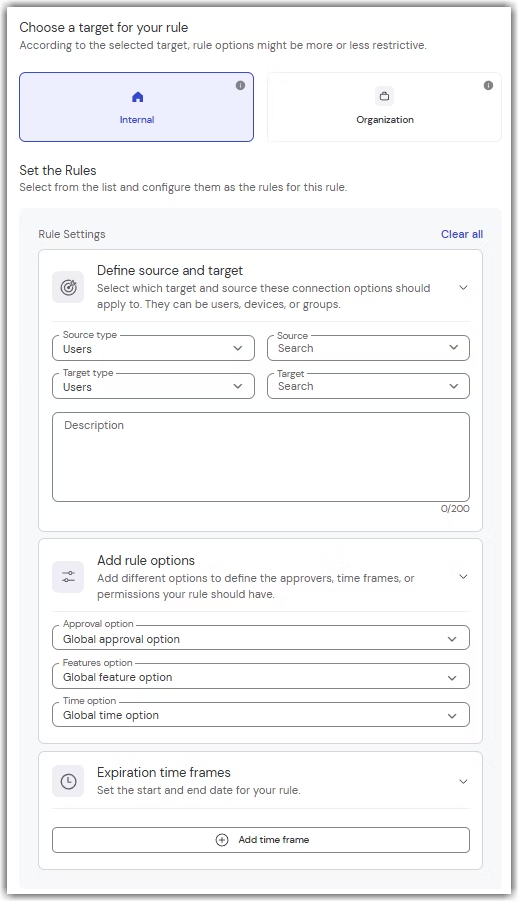
- Rules can now be created across company profiles when multitenancy is set up, and Conditional Access is available in both companies.

Why it matters
This gives admins clearer control over access settings, simplifies configuration by keeping everything in one place, and enables access rules across multiple company profiles in multitenancy environments.
Learn more here:
Get started with Conditional Access and Multitenancy
Minimum TeamViewer version: 15.78
Service code actions - Feature parity
What changed
We have added service code actions to the Device page, bringing it closer to feature parity with the classic experience. From both the Basic and Advanced Device page views, you can now:
- Assign session codes to contacts
- Move session codes to legacy device groups
- Start a connection using Windows Authentication directly from the Device page.
Why it matters
Administrators can now perform key service code management and connection actions directly where they manage their devices, without navigating to other areas of TeamViewer. This streamlines common workflows, reduces the number of clicks required to complete tasks.
You can learn more about this here:
Manage service cases with Service Queue
Minimum TeamViewer version: 15.78
TeamViewer ONE
New navigation now available in the full client

What changed
The redesigned TeamViewer ONE navigation is now available in the desktop app for Standard and Advanced users, with four main sections: Manage, Resolve, Automate, and Measure.
Why it matters
You can find what you need faster because related tasks are grouped together, reducing clicks and making daily work easier to navigate.
Learn more here: New navigation experience in TeamViewer ONE
Minimum TeamViewer version: 15.78
Unified TeamViewer ONE policy
What changed
When creating a new policy, you can now select “TeamViewer ONE” as a policy type and define TeamViewer Remote and Patch Management settings in one place before assigning the policy to device groups.
Why it matters
This simplifies setup and administration and helps you get value out of TeamViewer ONE more quickly through centralized settings.
Minimum TeamViewer version: 15.78
Multitenancy management
What changed
You can now set up multitenancy within TeamViewer ONE company profiles and access license usage reports across company profiles in the “Measure” section.

Why it matters
This makes it easier to manage multiple company profiles, switch between them quickly, and get a consolidated view of license usage.
Minimum TeamViewer version: 15.78
TeamViewer Remote
New permissions for access to billing information

What changed
When creating or editing a role, you can now enable access to the customer portal (billing information) for specific roles only.
Why it matters
This improves security and compliance by ensuring that only authorized users can access billing information.
Learn more here:
User role permissions - Overview
Minimum TeamViewer version: 15.78
Custom modules and rollout configuration improvements
What changed
When adding a remote device via link, TeamViewer no longer creates an automatically generated Host module and rollout setup for each link.
Why it matters
This makes managing custom modules and rollout setups simpler by avoiding unnecessary automatically created items.
Learn more here:
Add a device via link and
Add a device via rollout configuration
Minimum TeamViewer version: 15.78
TeamViewer AI
Stop Session Insights logging during outgoing sessions

What changed
During outgoing sessions, Session Insights logging can now be stopped at any time (based on your company’s configuration), with clear options to stop and save or stop and discard.
Why it matters
This gives both supporters and remote users more control and transparency, helping teams align AI documentation with their policies and use cases.
Learn more here: Generate session summaries with Session Insights
Minimum TeamViewer version: 15.78
AI-assisted scripting with Tia

What changed
You can now create scripts directly from session summaries by selecting a summary in Session Insights and clicking “Create script” in the upper right.
Why it matters
This increases efficiency and reduces the time needed to resolve recurring issues by reusing proven solutions.
Learn more here: Create and run remediation scripts from Session Insights with SCALE
Minimum TeamViewer version: 15.78
Device management
Service case actions now available from the Devices list
This applies only to legacy device groups.
What changed
You can now handle key service case actions directly from the Devices list, including assigning service cases to contacts, moving service cases to legacy device groups, and starting a connection using Windows Authentication.
Why it matters
You can move faster because common actions are available where you already manage devices, reducing context switching during support.
Learn more here: Manage service cases with Service Queue
Faster, more stable Devices list experience

What changed
The Devices list now loads noticeably faster, and we fixed several issues that could disrupt onboarding and access management (including device assignment via link, sharing devices/device groups, and removing managers).
Why it matters
You get a smoother daily workflow because devices appear quicker and key management actions work more reliably, especially in larger environments.
Learn more here: Device groups explained
Minimum TeamViewer version: 15.78
In-session experience
Customizable in-session toolbar on macOS
What changed
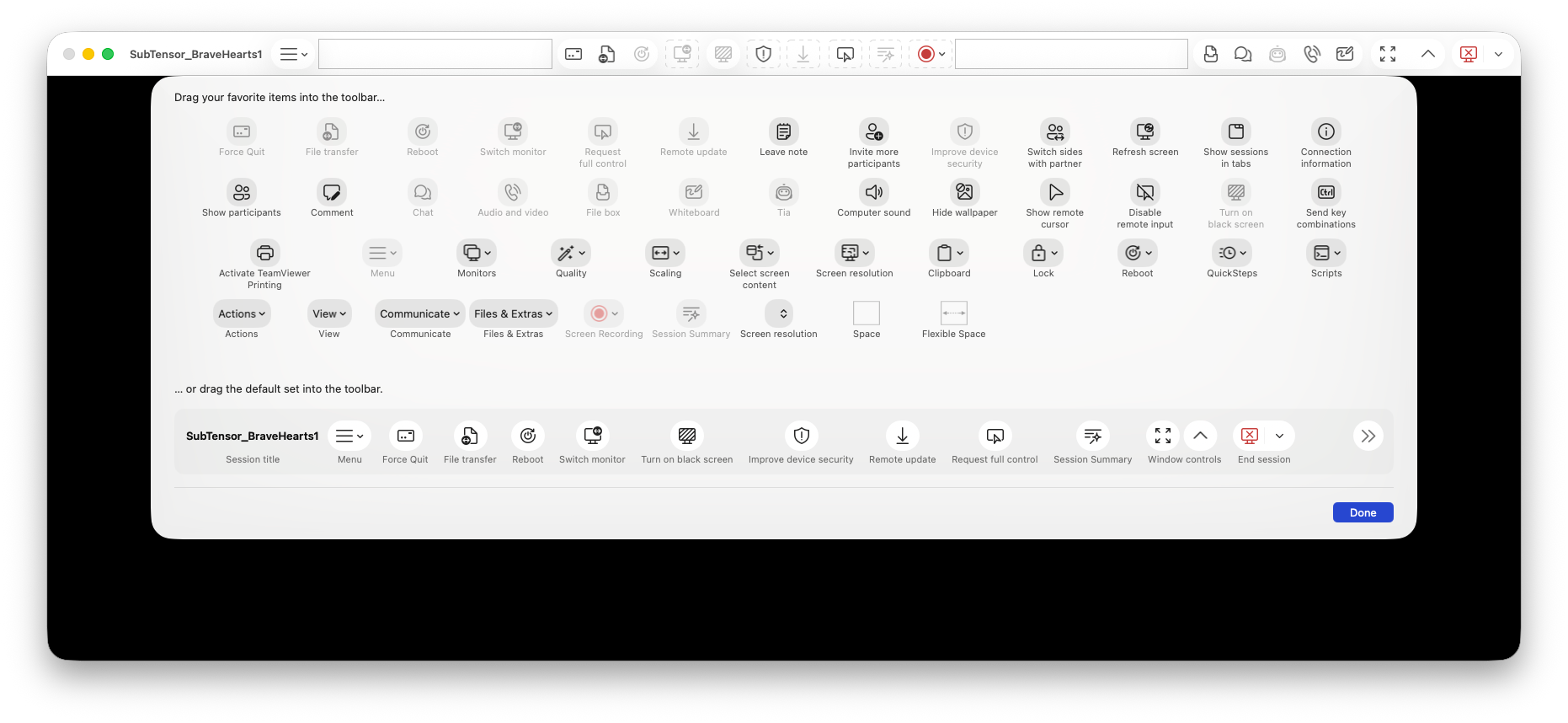
On macOS, you can now customize the in-session toolbar using native macOS toolbar customization to add, remove, and rearrange actions (Windows and Linux are planned for later updates). To enable the customization, right-click or control + click the toolbar and click Customize Toolbar.
Why it matters
You can tailor the toolbar to your workflow, making frequent actions easier to reach and reducing friction during remote support.
Learn more here: Remote session toolbar
Web client now reconnects smoothly after QuickSupport restarts with elevated rights

What changed
If QuickSupport needs to restart on the remote device to apply elevated rights (for example, when using Windows Authentication), the web client now keeps you informed and automatically reconnects when the restart is complete.
Why it matters
You can complete admin-level tasks with fewer interruptions because the session recovery is clearer and requires no manual effort.
Learn more here:Connect via Windows Authentication to control UAC during a TeamViewer session
Minimum TeamViewer version: 15.78