This article applies to Mac users in all licenses.
TeamViewer’s multi-monitor support allows users to connect to devices with multiple monitors and view these monitors easily.
Requirements
To be able to use this feature, you must meet the following requirements:
- You are using TeamViewer 13
- You are a private user or own a TeamViewer 13 license (or higher)
Specification
If you are remotely connected to a device with multiple monitors, you can easily switch between these monitors from the TeamViewer remote toolbar. If you have the same number of monitors or more than your client, it is also possible to mirror them one-to-one onto your own monitors.
With TeamViewer 13, Mac computers with multiple monitors work exactly the same way as Windows devices.
How to switch between monitors
In the TeamViewer toolbar, click on the icon with the two monitors.

How to select a monitor
Select the number of the monitor that you want to show , or show all monitor screens at the same time in a single window
 .
.

If you enable the option Monitors as individual tabs , each monitor and the combined view are displayed in a new tab in the open remote-control window.
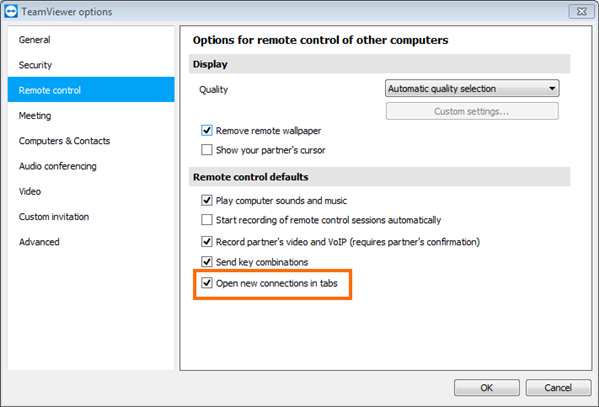
If opening of new connections in tabs is deactivated in the options, the monitors are displayed in a separate session window.
Page title: Multi-Monitor Support for Mac with TeamViewer 13
Description: With TeamViewer 13, Mac computers with multiple monitors are supported, exactly like Windows devices.