IT technicians spend time on a remote device getting all the sources of information they need to understand the kind of device they are dealing with, and diagnosing what a issue might be.
To find and fix issues quickly, and to save time on TeamViewer sessions, you can check any relevant information on a remote device dashboard. Here, you can view details and technical information about the remote device as well as information about the current TeamViewer session. TeamViewer calls up the standard information provided by all devices. Otherwise, you would discover them all manually. Now, you can quickly check if, for example, the hard drive needs repairing or replacing.
In detail, you can view the following General information of the remote device:
- The amount of processes on the remote device
- The performance
- Disk health information, to identify failing of the disk
- Security information
- Information about the current session and the remote user
- Information to identify the device, e.g., the serial number, which is usually glued to the back of the device. This very effective information helps you to check the warranty status of the device, or you can find out which hardware is built into it. If it got stolen or lost, and it turns up again, you can identify the device with the help of the serial number. When dealing with hardware incompatibilities, the BIOS version and date is also displayed.
- If available, you can check the battery level, whether it is plugged in or not, and for how long the device has been running without a reboot.
- Information on the system environment
To perform tasks, there are several links to the respective dialog available:
- Task manager
- Disk cleanup
- Action center
- Event log
- Network and sharing center
Due to the high information content, you quickly identify any potential issues and move on to solving them.
To put the benefits in a nutshell: You save time getting the information you need about a device during a remote connection.
Requirements
To be able to use this feature, you must meet the following requirements:
- You are using TeamViewer 13.
- You are a private user or own a TeamViewer 13 Premium or Corporate license (or higher).
- You are working on macOS or Windows.
Specification
The information is also available in ITBrain Monitoring. For more information, see the TeamViewer Manual ITBrain.
How to display the remote device dashboard
- Log in to TeamViewer and establish a connection to a remote device.
- To display the remote device dashboard, click the Home button in the menu bar.

-
In the following remote device dashboard, you can view all relevant information on the remote device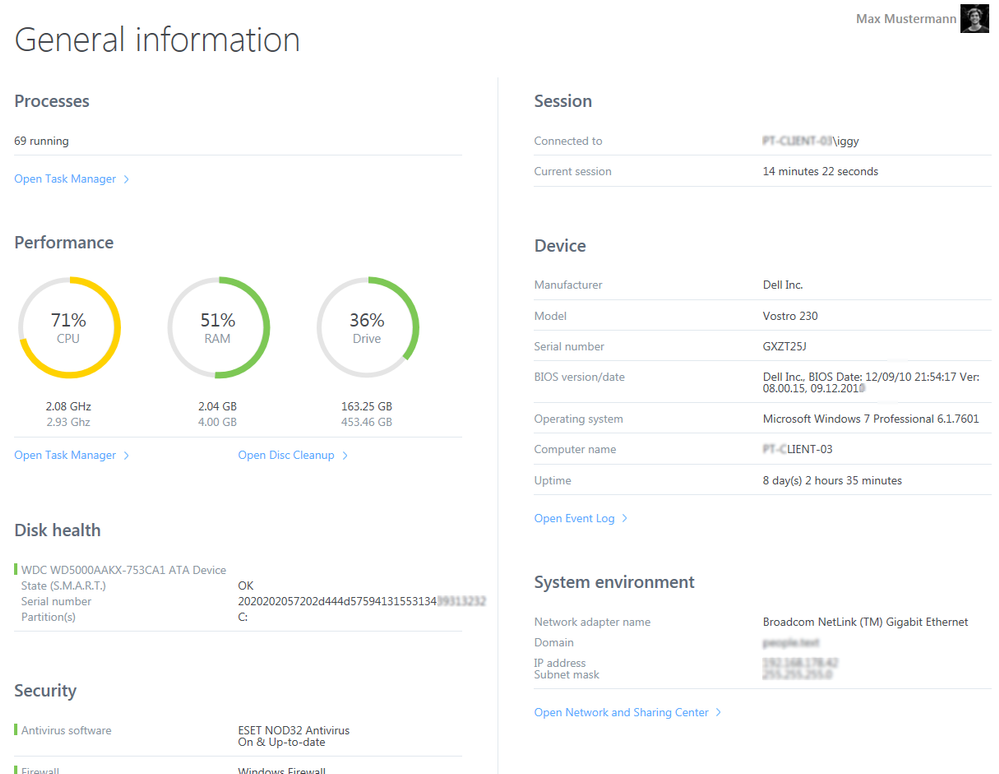
You can go back to the remote desktop any time.
Page title: TeamViewer Extended Remote Device Dashboard to find issues
url: extended-remote-device-dashboard
Description: TeamViewer's Extended Remote Device Dashboard with high information content. Check relevant information on a remote device to find and fix issues quickly.