General
Use channel groups to assign the TeamViewer channels of your license to users from your company profile. There are various possibilities to use your company's TeamViewer channels:
- Bundle single TeamViewer channels (channel groups) and assign them to the respective users.
- Reserve one or more TeamViewer channels for specific users.
- Define how your license and the corresponding channels are used and by whom.
- Receive a notification, if the channel limit is reached and no connections can be established.
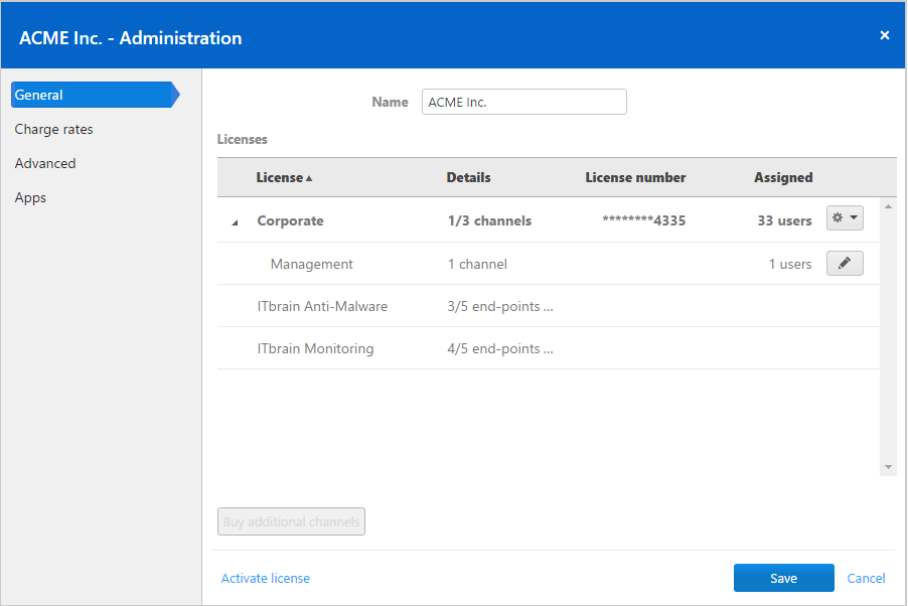 Manage TeamViewer channels of your company's licenses.
Example: You want to ensure that your IT support can always establish a connection. Do this by creating a channel group "IT support" and assign all support staff. They can use the selected number of channels at any time,regardless of the further use of your license.
Create channel group
In a channel group, you can provide the assigned users with a number of channels limited by your license.
To create a channel group, choose one of the following:
--> In the company administration under General, click this icon  followed by Create a channel group at the desired license.
--> Click Manage license in a user's profile. Then click this icon: and select Create channel group at the desired license:
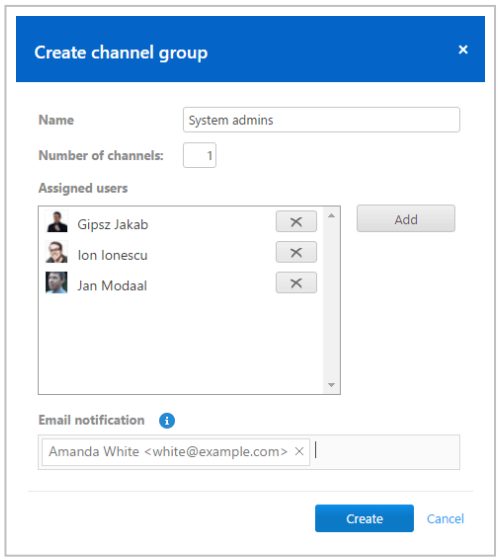 Create channel group.
Options of a channel group
Enter the following table:
 Content for table:
Description
Name
Enter any name for the channel group in the text field.
Number of channels
Specify how many channels are available to the channel group.
Assigned users
Assign users to the group who are allowed to use the channels of the channel group.
Email notification
Select users who will receive an email notification as soon as the specified number of channels prevents further parallel connection (channel limit).
Delete channel group
To delete a channel group, follow these steps:
--> In the company administration under General, click the  icon followed by Delete at the desired channel group. TeamViewer 12 Manual – Management Console www.te