I apologize if this question has been already asked. I tried using the search feature of this BBS but it didn't show me any relevant results.
I am using TeamViewer on my Mac to connect to my girlfriend's Windows computers (she has two: Her original computer and har dad's computer that she inherited). When I open the connections to those computers, I want their desktops to automatically appear as two tabs in the same window, rather than two different windows. I can do this by selecting "View → Show Sessions in Tabs" after I open the connections, but I'd rather have it do this automatically without having to select "View → Show Sessions in Tabs" every single time.
There is a setting for this: "Settings → Remote Control → Session Settings → Outgoing Connections → Open New Connections In Tabs". Shown in this screen shot:
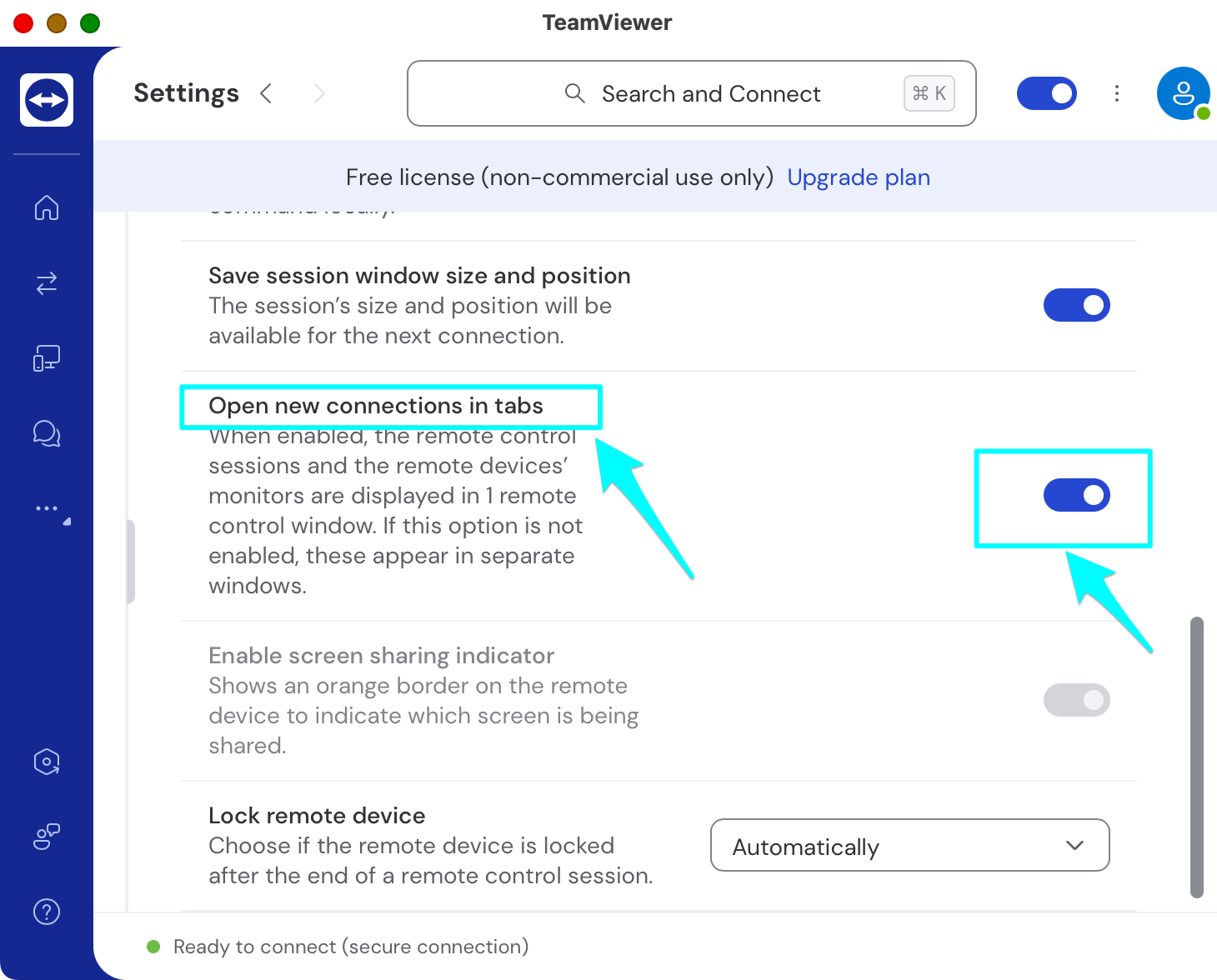
When I enabled that option, it worked exactly once, the very first time I tried it, and hasn't worked since then. Can anyone help me fix this so that it works as intended?
Details:
- My computer operating system: MacOS Monterey 12.7.6
- My computer TeamViewer version: TeamViewer 15.71.4
- Remote computer operating systems: Windows 10 Home 22h2 and Windows 11 Pro 25h2
- Remote computer TeamViewer versions: TeamViewer Host 15.72.6 H (64-bit)
Steps:
- On my Mac, open the TeamViewer application.
- Select the "gear" icon (Settings), then select "Remote Control → Session Settings → Outgoing Connections".
- Enable the settting "Open New Connections In Tabs" as shown in the screen shot above.
- Select "Devices" in the left-hand pane.
- Under "Recent Connections" move my mouse near the name of one of the computers. The "Connect" option will appear. Click on it.
- Do the same for the second connection.
Expected Result:
- The two connections should automatically appear as tabs in the same window.
Actual Result:
- The two connections appear in two separate windows.
- I must individually press "View → Show Sessions in Tabs" to make them appear as tabs in the same window.


